
LS 25 BUG ModManager V1.0.3.1
I was looking for a Mod Manager because I needed one. Actually, there’s only one Mod Manager on the market, but my antivirus software detects a malicious file. So I decided to create one myself. I have almost no coding knowledge, so I thought the most logical thing to do was to create one with AI assistance. I created this software with the help of Gemini and Claude. Everything works fine for me. I’m publishing it so others can benefit from it. There may be some shortcomings, and you can point out your requests. I’ll try to fix and add to it in my free time. Currently, the only problem is that it’s a bit slow, but as I said, it worked flawlessly for me, and I will continue to use it.
Technically, it works with the storeData data in the modDecs.xml and the XML files within the storeItems folder. Logically, it should work in all FS games with this structure. I developed and tested it for FS25.
Usage and operation:
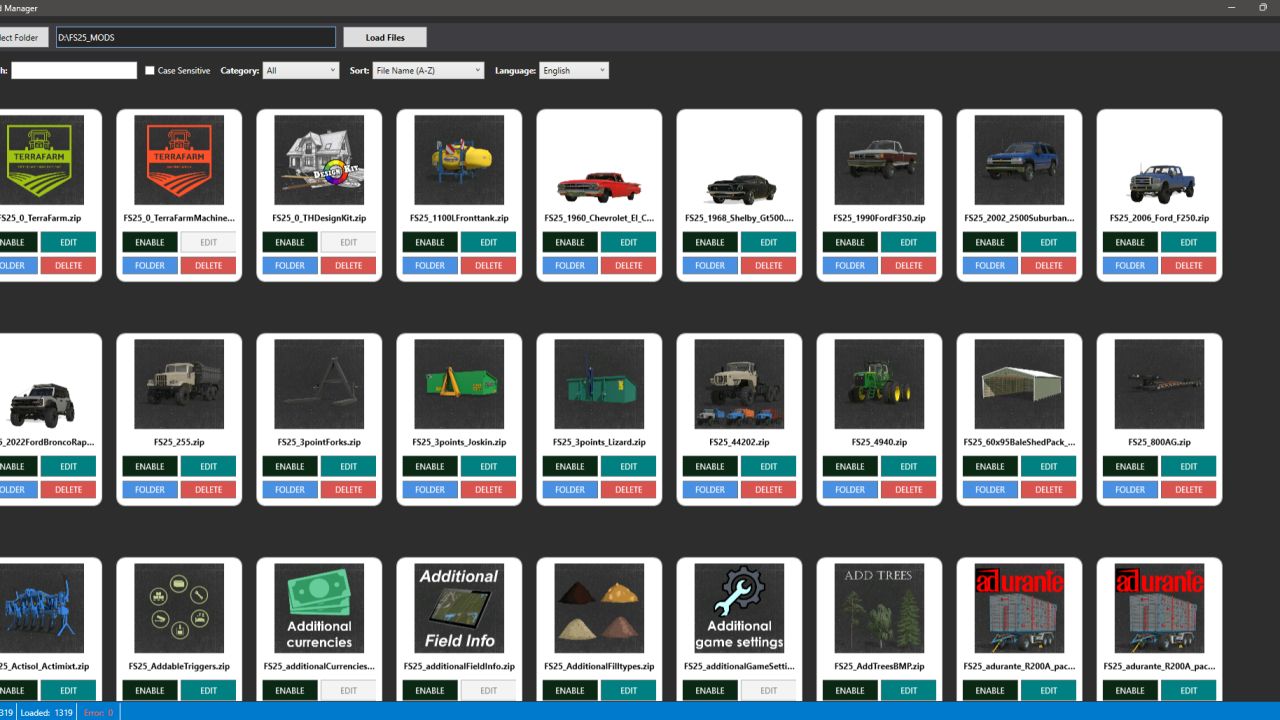
You select the folder containing the MODs from the left menu. Then you wait for the files to be listed using the “Load Files” option. When the mods are listed, you will receive a warning, and when you click “OK,” everything is ready to use.
Each mod initially has ACTIVE and EDIT options. ACTIVE indicates the current status. Pressing it once will DISABLE it and change the extension of the associated ZIP file to .zip_BAK. You can still see it in Mod Manager, but it will be disabled in the game. You can see the disabled mods and reactivate them by closing and reopening the program. Pressing EDIT once will show you the XML files located in storeItems within modDesc.xml. These files are the files in the in-game store associated with the mod. You will see and can change the Name, Brand, Lifespan, Price, and Power status of the items in the store. When you make changes to these fields, the SAVE option becomes active, and pressing it will change the relevant field in the mod. Note that I haven’t added controls to the input fields; you can enter a special character or letter where you want to enter a number, and the game might ignore this or break the mod. The ACTIVE button changes the relevant storeItem field in the storeItems section of modDesc.xml to a comment line in the code. The game store will no longer be able to see or display this file. It can be reverted to its original state. I added this so that if there are multiple store items in a mod, you can’t see the ones you don’t want in the store. For example, let’s say the modder has a tractor but also added a trailer. You can remove either the tractor or the trailer from the store. Use the SAVE option after each operation in the EDIT window.
The EDIT option is active if the storeItems section exists in modDesc.xml. Otherwise, this code will be deactivated.
I added two different languages; you can change the default to Turkish and English from the top right menu.
Thank you in advance to everyone who shows interest.
Changes:
You can now change the “Category” data for mods in the EDIT window. For example, you can move your mod from the Small Tractor category to the Medium Tractor category.
Mod window names were not being translated during language changes, but now they are displayed in the selected language.
Version 1.0.2 changes:
The default language is now English. I should have thought globally from the start. :D
If there are faulty modules, an additional window has been added for this, and some changes have been made to how the code works. If there are files causing ERRORS on the first read, you will now receive a warning window when the loading process is complete. Here you can see the names of the faulty files. You can now export these files to a TXT file by name, move them to a folder named ERROR_FILES, or delete these files directly. Also, when you close the window, you can reopen it by clicking on the ERROR warning area below.
Two more buttons have been added to the mod cards. I added a FOLDER button to go directly to the file’s relevant folder with the selected file. Also, if desired, there is now a DELETE option in the main menu.
Version 1.0.3 changes:
Performance improvements. The application now runs faster.
Date option added for the Sort function. Modes can now be sorted by modification date.
Version 1.0.3.1 changes:
Visual issue with mod cards in the main menu has been fixed.